How to create RPG documents: from template to clue
Follow real screenshots of the Mini Kraken document editor. Choose a template, customize text and layers, and prepare an image for your RPG session.
You already know the clue: someone saw a light on the platform of an abandoned station. Now it needs a presentation the characters can discover inside the story.
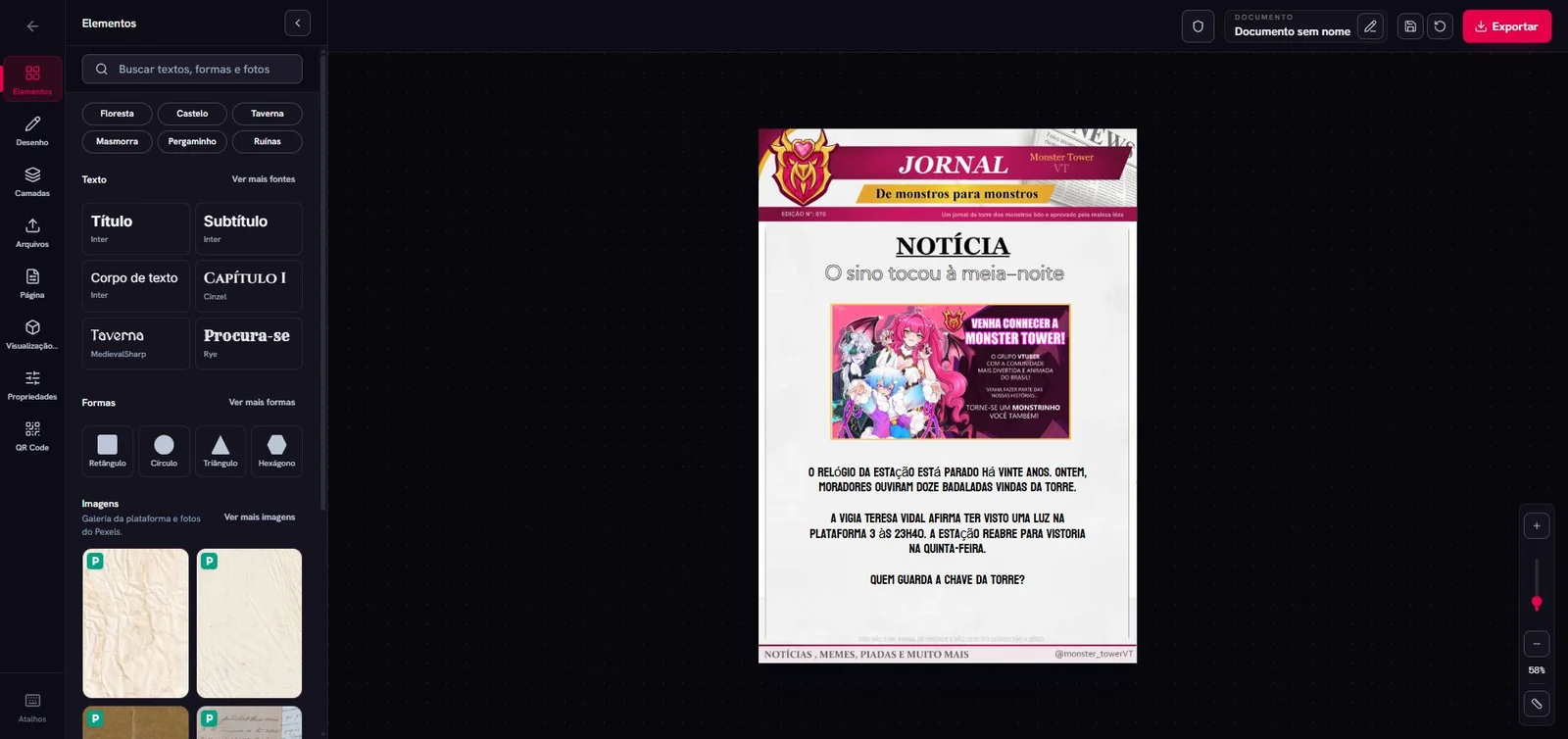
To create RPG documents in Mini Kraken, choose a template, adapt its information in the editor and check the image you will give the group. This walkthrough uses the Jornal da Torre template by Rhu Quimera to prepare a fictional news item. The screenshots show the real editor with the headline and body changed for this example. The interface and sample text shown are in Portuguese.
Click the screenshots to open larger images.
1. Choose a document for the scene
Open the RPG document library. A letter suits a personal request, a news article presents a public event and a photograph lets the group examine a visual detail.
In this example, the characters hear about a station reopening. A newspaper provides a public account, an identifiable source and a reason to visit.
We used Jornal da Torre. The template page and library explain the access conditions for each document. When a model is available to your account, Start editing loads it in the editor. You can also open the document editor to start a composition.
2. Write the information before decorating
Prepare a headline and a short story. Our example translates as:
The bell rang at midnight The station clock has been stopped for twenty years. Yesterday, residents heard twelve chimes coming from the tower. Watchkeeper Teresa Vidal reports seeing a light on platform 3 at 11:40 p.m. The station reopens for inspection on Thursday. Who holds the tower key?
The text provides a witness, a place and a deadline. The final question works as a news teaser; remove it if you prefer the players to formulate that question themselves.
The Elements panel offers text, shapes and images. Use them according to the document's needs: a new heading, signature, frame or photograph that establishes the discovery.
The headline and body were adapted. Jornal da Torre's original visual identity and presentation illustration remain in place.
3. Adjust the text in properties
Select the text on the editing surface and open Properties to change its content, font, size and alignment. You can also start editing text by double-clicking the element.
We reduced the headline size to accommodate the new title. Check long names and larger paragraphs in the same way: replacement text needs to fit without covering the image or crossing the margin.
Read the news at the size the group will use. If players need to zoom in substantially to read an address, increase its size or remove a secondary sentence.
4. Check the layers
Open Layers to identify the document's elements. In this example, the headline, story and images appear separately. You can select the part you want to adjust while preserving the others.
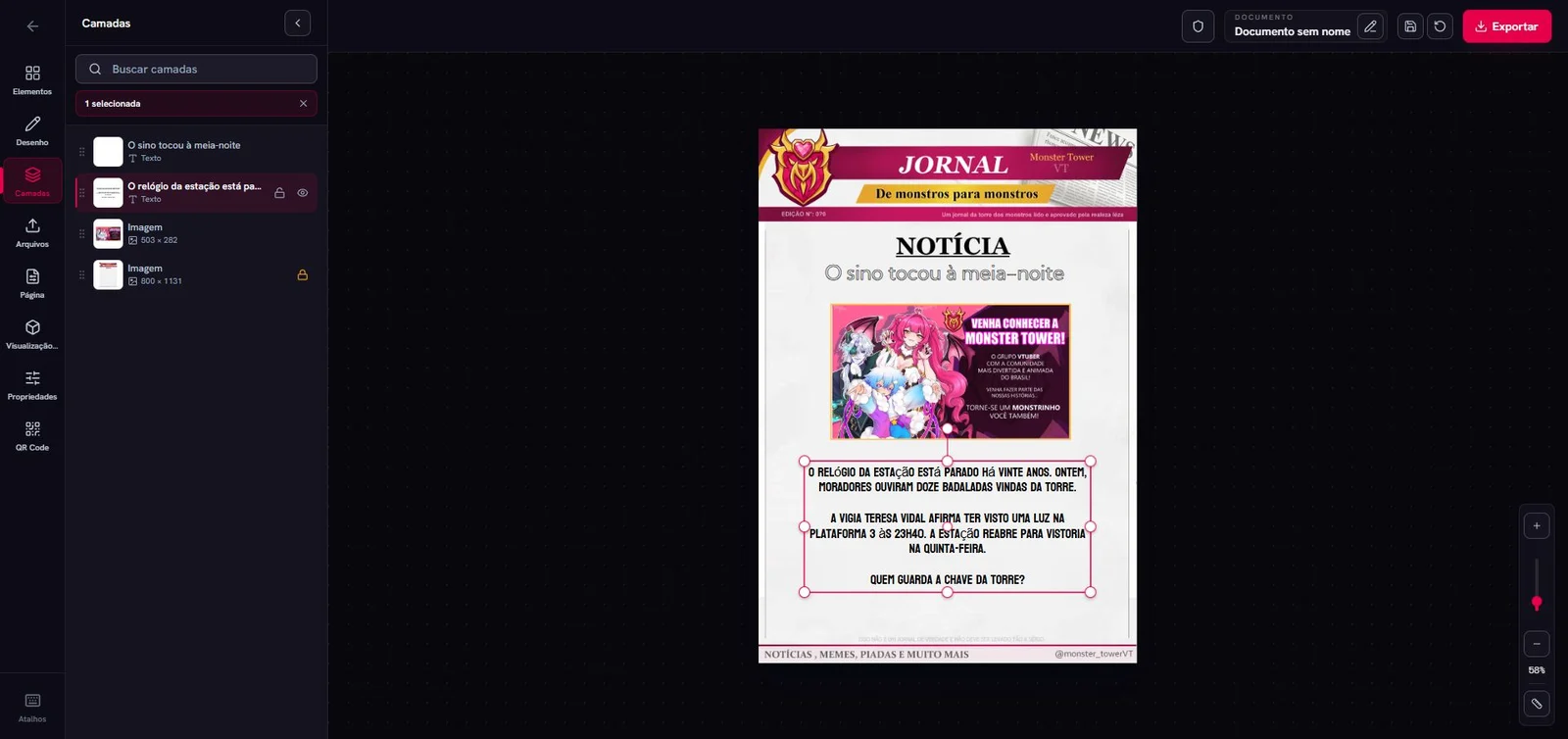
The selected story shows its boundaries on the page, helping you check its space before export.
This template's central illustration introduces Jornal da Torre. For the station case, choose an image belonging to that scene or reorganize the composition without it. A platform, clock or building exterior can support the clue, provided you have the right to use the image.
Review any template details that still need adaptation: teasers, dates, characters and references to another setting. Keep the solution and GM notes off the players' page.
5. Save the project and open export
Use Save to My Documents to keep the project for later editing. The exported image presents the result to the group.
Export shows a preview and offers WebP or PNG, with the current or a transparent background. For a full-page newspaper, the current background preserves its presentation. Transparency is useful for pieces that should appear without an opaque area around them.
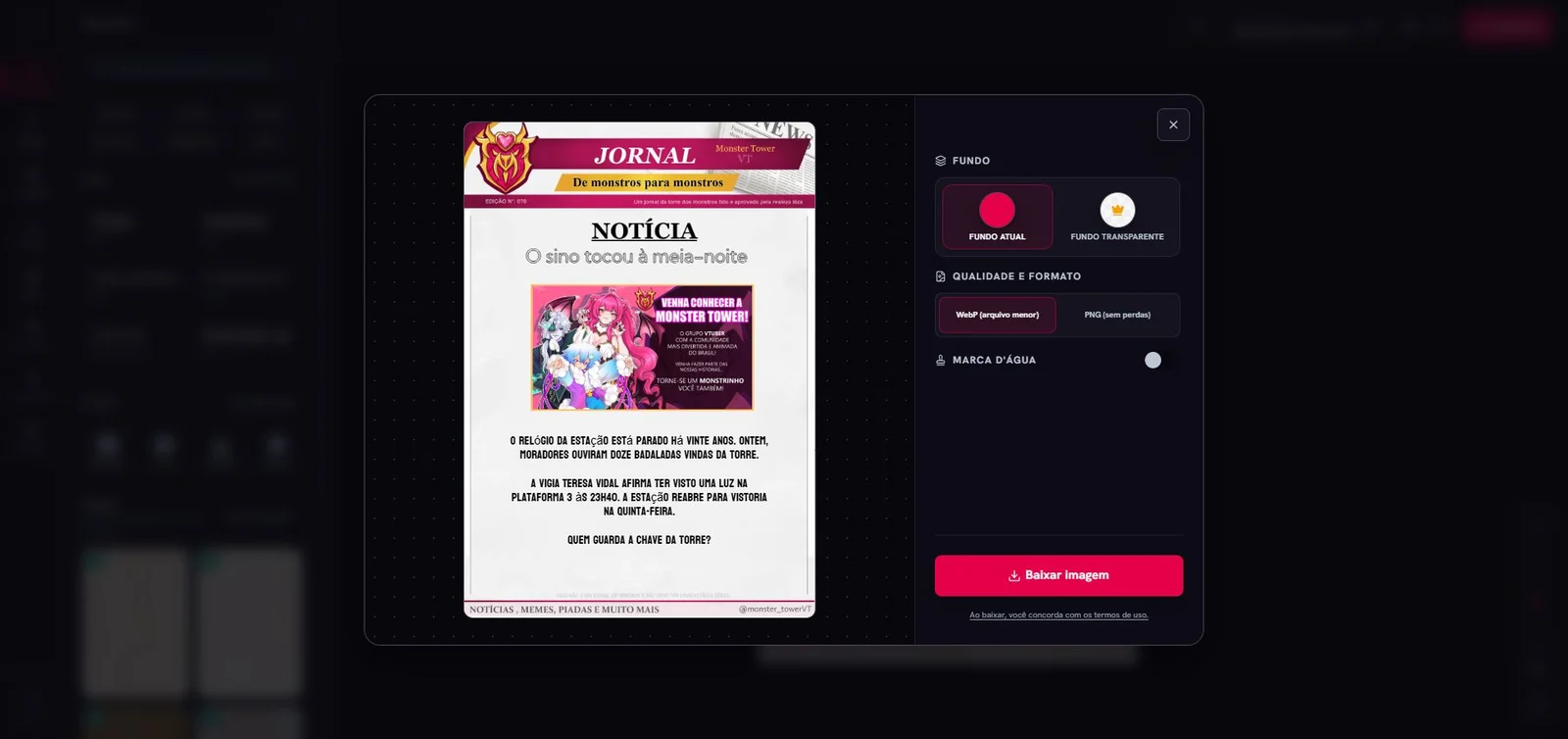
The preview lets you review the composition before downloading. WebP prioritizes a smaller file; PNG provides lossless export.
Open the exported file on the device the group will use. Check its text, image and edges. Keep a transcript of important information to make reading and reference easier.
6. Deliver the clue at the moment of discovery
Present the document when the characters buy the paper, open the news page or find the clipping. Let the group read and decide what to do with the information.
Give the file a name such as “station-news.webp”. A filename revealing the culprit or explaining the phenomenon spoils a discovery that should happen during play.
Start in the RPG document library. Then see how to connect news, a photograph and a note in an investigation or explore letters and diaries to adapt to your campaign.